Few things are more frustrating than a spinning wheel during the final minutes of a match or the twist in a film. The good news is that most buffering and freezing can be fixed at home, often in minutes. This checklist starts with the quickest fixes and moves on to deeper ones, so work through it in order and stop when the problem disappears.
Why IPTV streams buffer
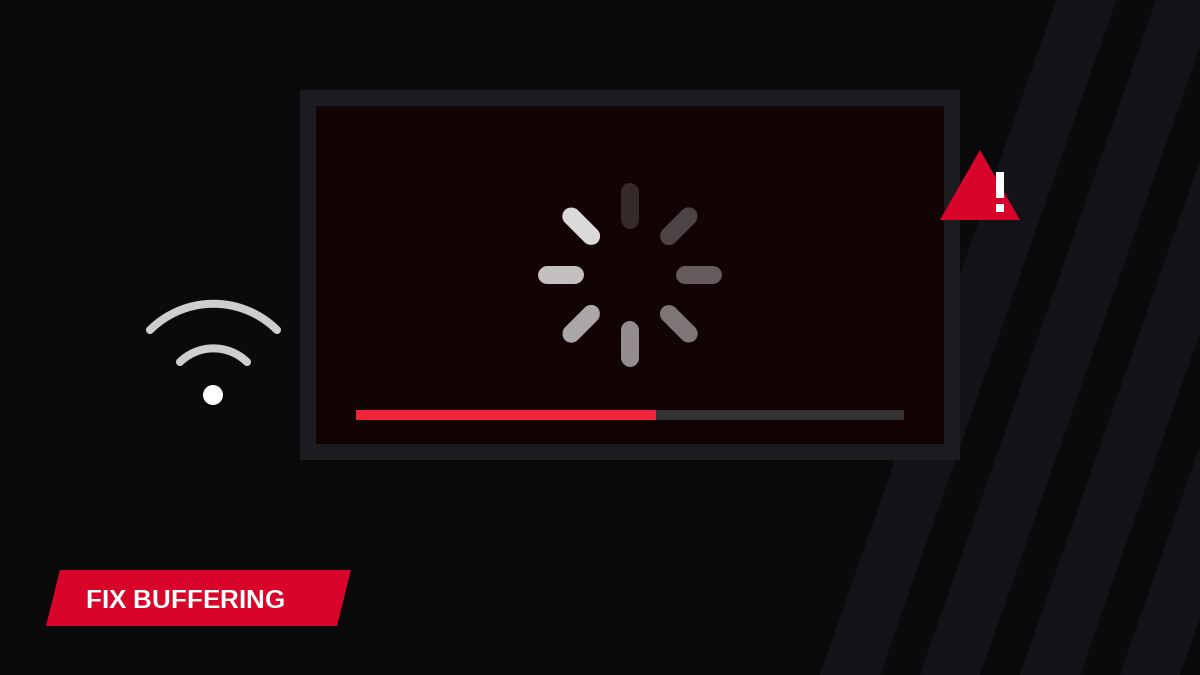
A player keeps a few seconds of video in a small reserve called a buffer. As long as data arrives faster than it is played, everything is smooth. When the flow slows, even briefly, the reserve empties and playback pauses. The slowdown can happen in four places:
- Inside your home: weak Wi‑Fi, a congested network or an old router.
- Your device: too little memory, overheating or an outdated player app.
- Your internet provider: evening congestion or traffic management.
- The source: occasionally a single channel has a temporary problem.
The first three are by far the most common, which is why they come first in the checklist.
Two-minute fixes
1. Restart the device and the router
Turn the TV, stick or box fully off (unplug it for 30 seconds), and do the same with your router. This clears memory and refreshes the connection, and it solves more problems than any other single step.
2. Try another channel
If other channels play smoothly, the issue is probably limited to one source. Note the channel name and let us know. If everything buffers, keep going down the list.
3. Drop the quality one step
Switch from the 4K version of a channel to FHD, or from FHD to HD. If playback becomes smooth, your connection or device is the bottleneck for higher-quality streams.
Network fixes
4. Use a cable or a better Wi‑Fi band
An Ethernet cable between the router and your TV or box removes the most common cause of buffering. If that is not possible, connect to your router’s 5 GHz network. In larger homes, mesh Wi‑Fi or powerline adapters can carry a strong signal to the TV room.
5. Move the router into the open
Routers hidden in cupboards, behind TVs or near metal surfaces lose a lot of range. Place it higher up and more central.
6. Free up bandwidth
Large game downloads, cloud backups, system updates and other streams all compete for the same connection. Pause them during live events, or schedule them overnight.
7. Test at the time you watch
Run a speed test on the device you watch on, in the evening, three times. Go by the lowest figure. As a guide, aim for about 10 Mbps for HD, 15–20 Mbps for FHD and 25 Mbps or more for 4K, per stream.
8. Change DNS settings (optional)
Some routers use slow DNS servers that delay the start of streams. Switching your router or device to a well-known public DNS service can help with slow channel loading. This is optional and safe to undo.
Device and player fixes
9. Clear the player cache
On Android TV and Fire TV, go to the app settings and clear the cache (not the data, unless you are ready to re-enter your login). On other platforms, reinstalling the player has a similar effect.
10. Switch decoder or buffer settings
Many players offer a choice between hardware and software decoding. If one stutters, try the other. Some also let you increase the buffer size, which helps absorb short drops in speed.
11. Update everything
Update the player app, the device firmware and, if possible, your router’s firmware. Updates often improve stability and add codec support.
12. Watch the temperature
Streaming sticks tucked behind wall-mounted TVs can overheat and slow down. An HDMI extension cable moves the stick away from the heat. Boxes should have space around them for air to flow.
13. Check the device can handle 4K
Older or entry-level devices may not decode 4K H.265 streams smoothly, no matter how fast your connection is. If HD is perfect but 4K always struggles, the device may be the limit.
Isolate the cause
Try the same channel on another device, ideally one connected by cable or sitting next to the router. If it plays perfectly there, the problem is the original device or its Wi‑Fi connection. If it also buffers, test on mobile data. Smooth playback on mobile data but not at home points to your home network or your provider.
When to contact Nartiel 8K support
If you have worked through the checklist and the problem continues, message us on WhatsApp with:
- the device and player app you use;
- whether it affects all channels or specific ones (and their names);
- your latest speed test result;
- a photo or short video of what you see on screen.
That information lets us find the cause quickly. Our team is available 24/7.
Recap
- Restart the device and router.
- Test another channel and a lower quality.
- Use Ethernet or 5 GHz Wi‑Fi and free up bandwidth.
- Clear the cache, update, and try different decoder settings.
- Isolate the cause, then contact support with details.
Setting up a new device? Start with our Apple guide or MAG guide. Not a subscriber yet? Compare the Nartiel 8K plans.