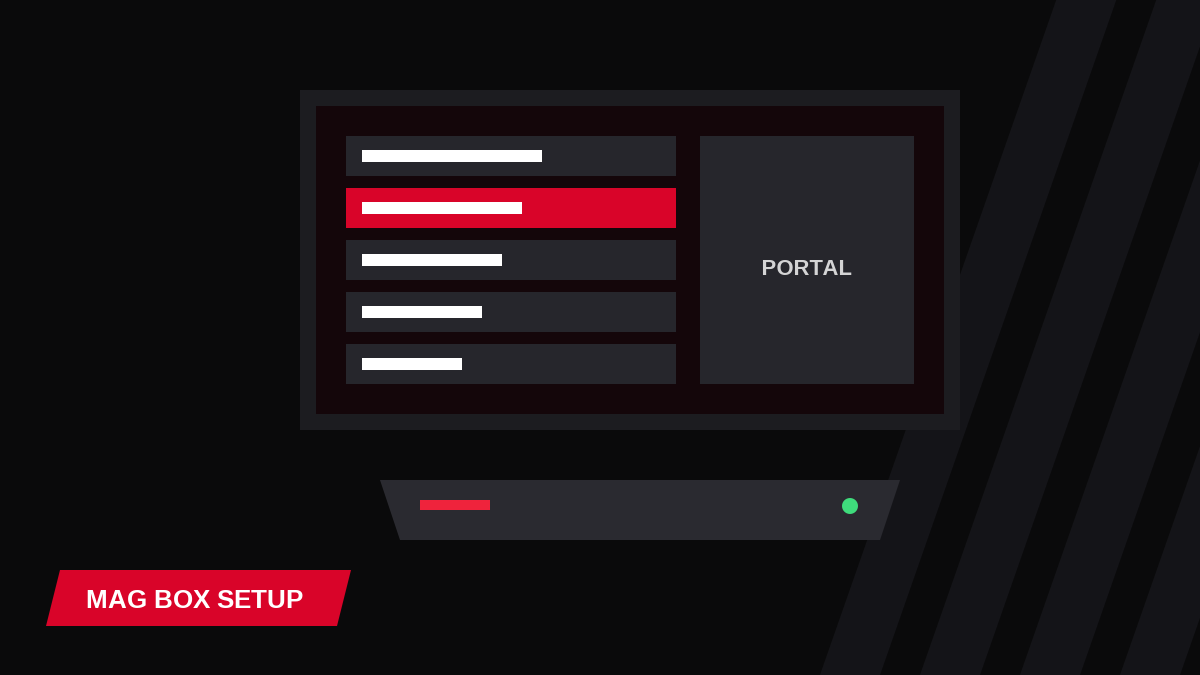
MAG set-top boxes have been a favourite among IPTV viewers for years. They are simple, remote-friendly and dedicated to one job. They also work differently from app-based players: instead of typing a username and password, a MAG box connects through a portal address and identifies itself by its MAC address. This guide explains how to activate Nartiel 8K on a MAG box step by step.
What makes MAG boxes different
Every network device has a unique hardware identifier called a MAC address. A MAG box sends this identifier to the portal, and the portal checks whether that MAC is linked to an active subscription. In practice that means two things:
- You must send us your box’s MAC address so we can link it to your Nartiel 8K plan.
- Your subscription follows the box, not a password. If you replace the box, we need the new MAC.
The same approach is used by several other set-top boxes and by some apps that emulate a MAG portal, so the steps below apply more widely than just one brand.
Step 1: Find your MAC address
Look for a sticker on the underside or back of the box and on the packaging. The MAC address is a series of six pairs of characters, typically starting with 00:1A:79 on MAG devices. You can also find it in the menu under Settings → System information or Device info, depending on firmware.
Send the MAC address to us on WhatsApp together with your order. A clear photo of the sticker is ideal: it avoids confusion between similar-looking characters like 0 and O, or 8 and B.
Step 2: Add the Nartiel 8K portal
Once your MAC is activated, we send you a portal URL. Then:
- Open Settings (on many models press Setup on the remote).
- Go to System settings → Servers → Portals.
- Enter a name such as “Nartiel” in Portal 1 name.
- Type the portal address exactly as we sent it into Portal 1 URL. Pay attention to slashes and the ending of the address.
- Save and go back, then choose Restart portal or reboot the box.
Step 3: First start
After the restart, the box connects to the portal and loads the menus for live TV, films and series. The first load can take a little longer than usual. From then on, the box opens straight into the Nartiel 8K interface each time you switch it on.
Getting the best from a MAG box
- Use the Ethernet port. MAG boxes have wired networking for a reason; it is far more stable than their Wi‑Fi adapters.
- Update the firmware through the settings menu when an official update is offered. Newer firmware improves compatibility and playback.
- Set the right video output. Under Video settings, choose the resolution that matches your TV. Pick 4K output only if both the box model and the TV support it.
- Use the favourites button. Mark channels as favourites to build a quick list instead of scrolling large categories.
- Reboot occasionally. A weekly power cycle keeps the box responsive.
Common portal errors and how to fix them
“Loading portal…” never finishes
Check the network cable and the router, then confirm the portal URL character by character. A missing slash at the end is a frequent cause.
“STB blocked” or “MAC not registered”
The MAC on your box does not match the one activated on our side, or activation is not complete yet. Send us a photo of the MAC sticker and the screen message.
Channels list loads but nothing plays
Try another channel to see if the issue is general. If none play, restart the box and router. If only one channel fails, let us know which one so we can check that source.
Picture is cut off or has black borders
Adjust the output resolution and the aspect ratio settings in the video menu so they match your TV.
Get help from our team
MAG activation is a routine job for us. If you get stuck, message us on WhatsApp with your box model, MAC address and a photo of the screen, and we will sort it out with you. If you also watch on Apple devices, our iPhone, iPad and Apple TV guide covers those, and the Nartiel 8K plans page lists every subscription option.